

Picture this: your wedding day is finally here, and three carloads of guests are circling the wrong block because your invitation only listed a street address. It's a stressful, avoidable problem. Embedding an interactive map directly into your digital wedding invitation gives guests one-tap access to turn-by-turn directions, removes the guesswork, and keeps your celebration running on time. This guide walks you through every step, from picking the right mapping tool to testing the final guest experience, so you can send your invites with total confidence.
Table of Contents
- Why add maps to wedding invitations?
- Choosing the right mapping tool
- What you need: Tools and requirements overview
- Embedding a Google Map: Step-by-step guide
- Mobile optimization and accessibility checks
- Troubleshooting: Common mistakes and solutions
- Final checks: Verifying guest experience
- Next steps: Seamless digital wedding invitations
- Frequently asked questions
Key Takeaways
| Point | Details |
|---|---|
| Easy map embedding | Google Maps offers a simple, free embed for digital wedding invitations with minimal setup. |
| Responsive design matters | Testing map embeds on mobile devices ensures every guest can access directions easily. |
| QR codes bridge formats | QR codes allow guests to access venue maps from both digital and printed invites seamlessly. |
| Troubleshoot common issues | Check for iframe errors, sizing, and privacy settings to resolve map embed problems quickly. |
| All-in-one invite solutions | Digital platforms let you integrate maps, RSVPs, and guest management features for stress-free planning. |
Why add maps to wedding invitations?
Guests today expect the same convenience from a wedding invitation that they get from any other digital experience. A clickable map removes friction entirely. Instead of copying an address into a separate app, your guests tap once and navigation starts.
The benefits go beyond convenience. When guests can see the venue on a map, they can plan parking, spot nearby hotels, and understand the surrounding area before the big day. That context reduces last-minute calls and texts to you when you have far better things to focus on.
Digital invitations make modern invitation engagement genuinely interactive. A static PDF or paper card simply cannot do what an embedded map does. You can drop a precise pin, add a custom label, and even include multiple locations like the ceremony and reception venues on the same invite.
Here is what an embedded map does for your guests:
- One-tap navigation directly from the invitation to their preferred maps app
- Visual context so guests understand the venue's surroundings before arriving
- Reduced confusion for venues with unusual addresses or rural locations
- Accessibility for out-of-town guests who are completely unfamiliar with the area
- Fewer day-of questions directed at you or your wedding party
The Google Maps embed is the simplest, free, no-API-key method available, making it ideal for couples who are not developers. Pairing the embed with a direct link gives guests the best possible experience across all devices.
Choosing the right mapping tool
Not every mapping solution fits every couple's needs. Your choice depends on your technical comfort level, your invitation platform, and how much customization you want.
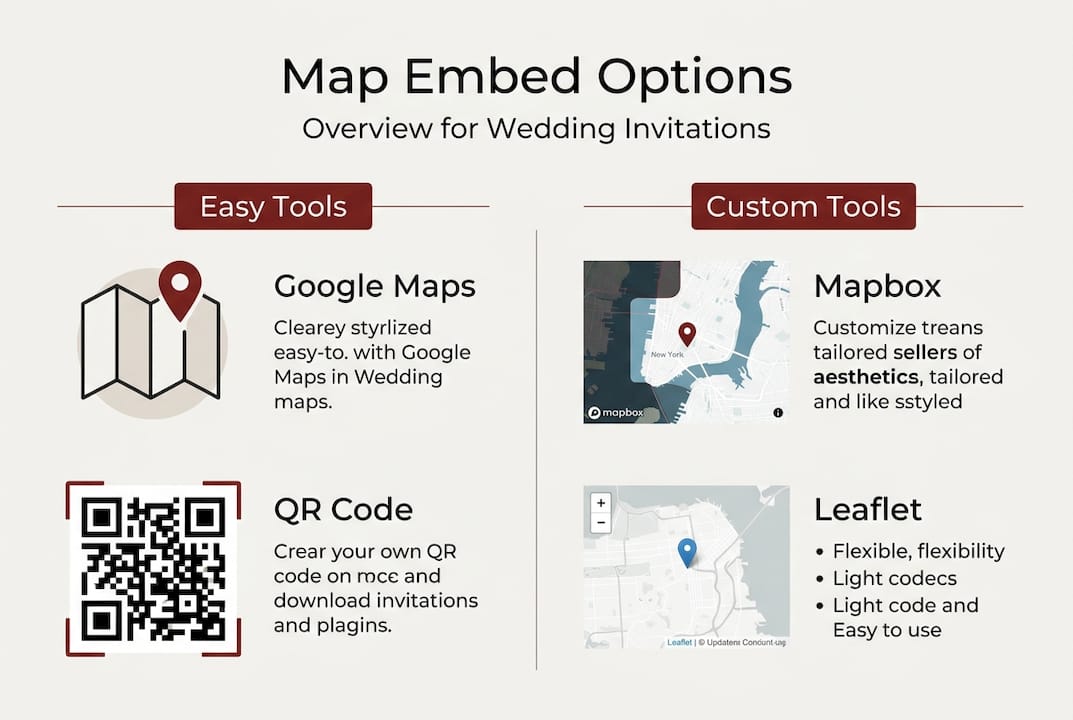
Google Maps is the right choice for most couples. It's free, universally recognized, and requires zero coding knowledge. Guests already trust it, and the embed process takes about five minutes.

Mapbox and Leaflet are worth considering if you want something more custom. For multi-marker or styled maps, Mapbox GL JS offers powerful design control, while Leaflet is lighter and better suited for basic interactivity. Both require more technical setup.
QR codes are a smart bridge between digital and physical. A QR code on your invitation links directly to a map and works beautifully on printed info cards, keeping your main invite design clean while still giving guests easy navigation access.
| Tool | Skill level | Cost | Best for |
|---|---|---|---|
| Google Maps embed | Beginner | Free | Most couples |
| Mapbox GL JS | Advanced | Free tier + paid | Custom styling, multi-markers |
| Leaflet | Intermediate | Free | Lightweight interactivity |
| QR code link | Beginner | Free | Printed or hybrid invites |
Pro Tip: If your invitation platform does not support iframe embeds, generate a QR code that links to your Google Maps pin. It takes two minutes and works on any platform, including printed inserts.
For more guidance on layout and visual choices, the design tips for digital invites resource covers how to integrate maps without cluttering your design.
What you need: Tools and requirements overview
Before you start embedding, gather everything in one place. Rushing this step leads to broken embeds and last-minute fixes.
Here is what you need depending on your chosen approach:
| Requirement | Google Maps | Mapbox/Leaflet | QR code |
|---|---|---|---|
| Google account | Yes | No | No |
| Mapbox account | No | Yes | No |
| API key | No | Yes | No |
| Invite platform with iframe support | Yes | Yes | No |
| QR code generator | No | No | Yes |
| Mobile testing device | Yes | Yes | Yes |
A few technical details matter here. Your iframe embed must be responsive, meaning it resizes correctly on phones and tablets. The minimum recommended map size is 200 pixels wide. Anything smaller becomes unreadable on mobile screens.
Also consider guest privacy. Avoid enabling unnecessary API features that track user behavior. Keep your embed as simple as possible.
Key checklist before you begin:
- Confirm your platform supports iframes (most modern digital invite builders do)
- Have your venue's exact address ready, including any suite or building numbers
- Test your internet connection during setup to avoid incomplete saves
- Prepare a backup direct link in case the embed fails on certain devices
For a deeper look at making your invite work for every guest, the invite accessibility tips guide covers screen readers, color contrast, and more.
Embedding a Google Map: Step-by-step guide
The Google Maps embed is free and requires no API key, making it the go-to method for most couples. Follow these steps exactly.
- Open Google Maps in your browser and search for your venue by name or address.
- Confirm the pin is correct. Zoom in to verify the marker sits on the right building, not a nearby street.
- Click "Share" in the left-hand panel, then select the "Embed a map" tab.
- Choose your map size. Select "Large" for the best visibility, or use "Custom size" to set specific pixel dimensions.
- Copy the iframe code. It starts with "<iframe
and ends with</iframe>`. - Open your digital invitation editor and paste the iframe code into an HTML or embed block.
- Save and preview the invitation on both desktop and a mobile device.
- Add a direct link below the map as a fallback, labeled something like "Open in Google Maps."
Always preview your invite as a guest would see it, not just from your editor dashboard. The embed may look perfect in edit mode but behave differently in the live, shareable version.
Pro Tip: Search for your venue by its business name rather than just the address. This ensures the pin lands on the correct entrance, which matters a lot for large venues, hotels, or venues inside parks.
For a broader look at building your full invitation, the step-by-step digital invites guide walks through every design element from start to finish.
Mobile optimization and accessibility checks
More than 60% of people open emails and digital links on their phones first. Your map embed must look and function perfectly on a small screen, not just on a laptop.
The most common mobile issue is a fixed-width iframe that overflows its container. To fix this, make the iframe responsive using CSS. The aspect-ratio property or the classic padding-hack technique both work well. Set a minimum width of 200 pixels so the map stays readable.
Accessibility matters too. Not every guest navigates the web the same way. Here is what to check:
- Add a title attribute to your iframe (for example,
title="Wedding venue map") so screen readers can describe it - Include a text alternative with the full venue address written out below the map
- Use high-contrast labels if you add custom markers or overlays
- Test with keyboard navigation to confirm guests can interact with the map without a mouse
- Verify load speed on a mobile data connection, not just Wi-Fi
For more on making your invitation work for every guest, the wedding invite accessibility guide is a practical resource.
Troubleshooting: Common mistakes and solutions
Even a carefully prepared embed can run into problems. Knowing what to look for saves you hours of frustration.
Map not showing up at all is usually caused by one of three things: your platform blocks iframes, the embed code was pasted incorrectly, or a browser security setting is blocking the content. Check your platform's documentation to confirm iframe support.
Sizing issues on mobile happen when the iframe has a fixed pixel width. Wrap it in a responsive container div and set width: 100% in your CSS. The iframe responsive fix using aspect-ratio is the cleanest modern solution.
API restriction errors appear as gray boxes with an error message inside the map area. If you see this, you may have accidentally used an API-key-restricted embed. Switch to the standard Google Maps embed method, which requires no key at all.
Common fixes at a glance:
- Blank map area: Re-copy the iframe code directly from Google Maps and re-paste it
- Wrong pin location: Search by venue name, not just address, and confirm the marker position before copying
- Map loads slowly: Reduce the iframe dimensions slightly and test on a mobile connection
- Platform won't accept iframe: Switch to a QR code linking to the map instead
If your invitation platform does not support iframes at all, a QR code is not a compromise. It is actually a cleaner solution for guests who prefer to open maps in their native app.
Pro Tip: Always test your embed in an incognito browser window. This removes cached data and shows you exactly what a first-time guest will see when they open your invitation.
For guidance on keeping guest data safe throughout this process, the privacy in digital invitations article covers what to watch for.
Final checks: Verifying guest experience
Before you hit send, run through a complete guest experience test. This is the step most couples skip, and it is the one that catches the most problems.
Step-by-step final verification:
- Open the live invitation link on your phone (not the editor preview).
- Tap the embedded map and confirm it loads within two seconds.
- Tap the direct "Open in Google Maps" link and verify it opens the correct location.
- If you included a QR code, scan it with your phone camera and confirm it navigates correctly.
- Forward the invite link to a friend or family member and ask them to test it on their device.
- Check the invite on at least one Android and one iOS device if possible.
Additional things to verify:
- Map pin is on the correct building entrance, not a parking lot or side street
- Venue name is visible on the map without needing to zoom in
- The invite loads quickly on a standard mobile data connection
- RSVP button and map do not overlap on smaller phone screens
For couples managing a large guest list, pairing your map with solid RSVP tracking and guest management tools ensures the entire invitation experience works together seamlessly.
Next steps: Seamless digital wedding invitations
You now have everything you need to embed a map that actually works for your guests. But a great map is just one piece of a truly polished digital invitation.
At The Digital Yes, we build digital wedding invitations that include embedded maps, real-time RSVP tracking, guest management dashboards, and multimedia elements, all in one place. No subscriptions, no printing costs, and no technical headaches. If you want to see how map integration fits into a complete invitation design, the digital RSVP invitation design guide shows exactly how it all comes together. Your guests deserve an invitation that makes finding you effortless.
Frequently asked questions
Can I embed maps in both digital and printed wedding invitations?
You can embed interactive maps in digital invites directly, and for printed invitations, a QR code links to maps so guests can navigate with one scan.
Which mapping tool is easiest for a non-technical couple?
Google Maps is the simplest choice. The free, no-key embed requires no coding skills and takes about five minutes to set up.
How do I make sure my map looks good on mobile phones?
Set the iframe to scale responsively and test on mobile before sending. A minimum width of 200 pixels keeps the map readable on small screens.
What can I do if my map embed isn't working?
Check for iframe errors, confirm your platform supports embeds, and use referrerpolicy for API restrictions if needed. A QR code is a reliable fallback for any platform.
Are embedded maps secure for guest privacy?
Yes, when kept simple. Avoiding unnecessary API features and following digital invitation privacy best practices keeps your guests' data protected.